Spine Layout Features
Magic Layout is a tool to assemble a scene from a collection of spine files. The features below describe the naming conventions and behaviours that the runtime picks up automatically.
1. Slot Embedding
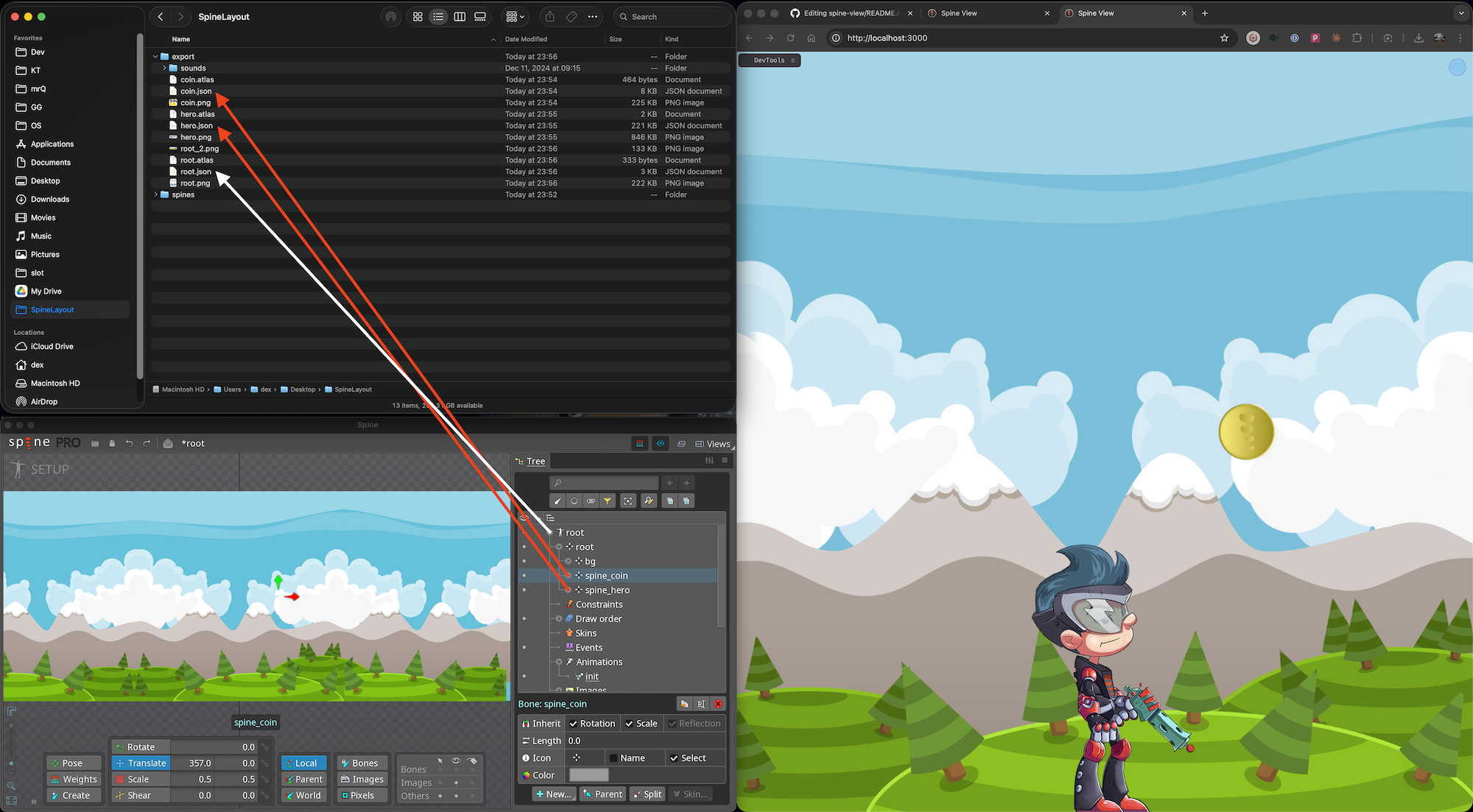
You can embed one spine instance into a slot of another spine instance by naming the slot/bone using the spine_ prefix. This lets you assemble a scene from many spines and control them (show/hide/animate) through cross-instance bone references.
Example
You have a root spine with a slot named spine_hero and another spine exported as hero. The hero spine is automatically positioned, scaled, and animated according to the spine_hero slot in the root spine. Add as many embedded spines as you need by creating more slots with the spine_ prefix.
2. Animation Control
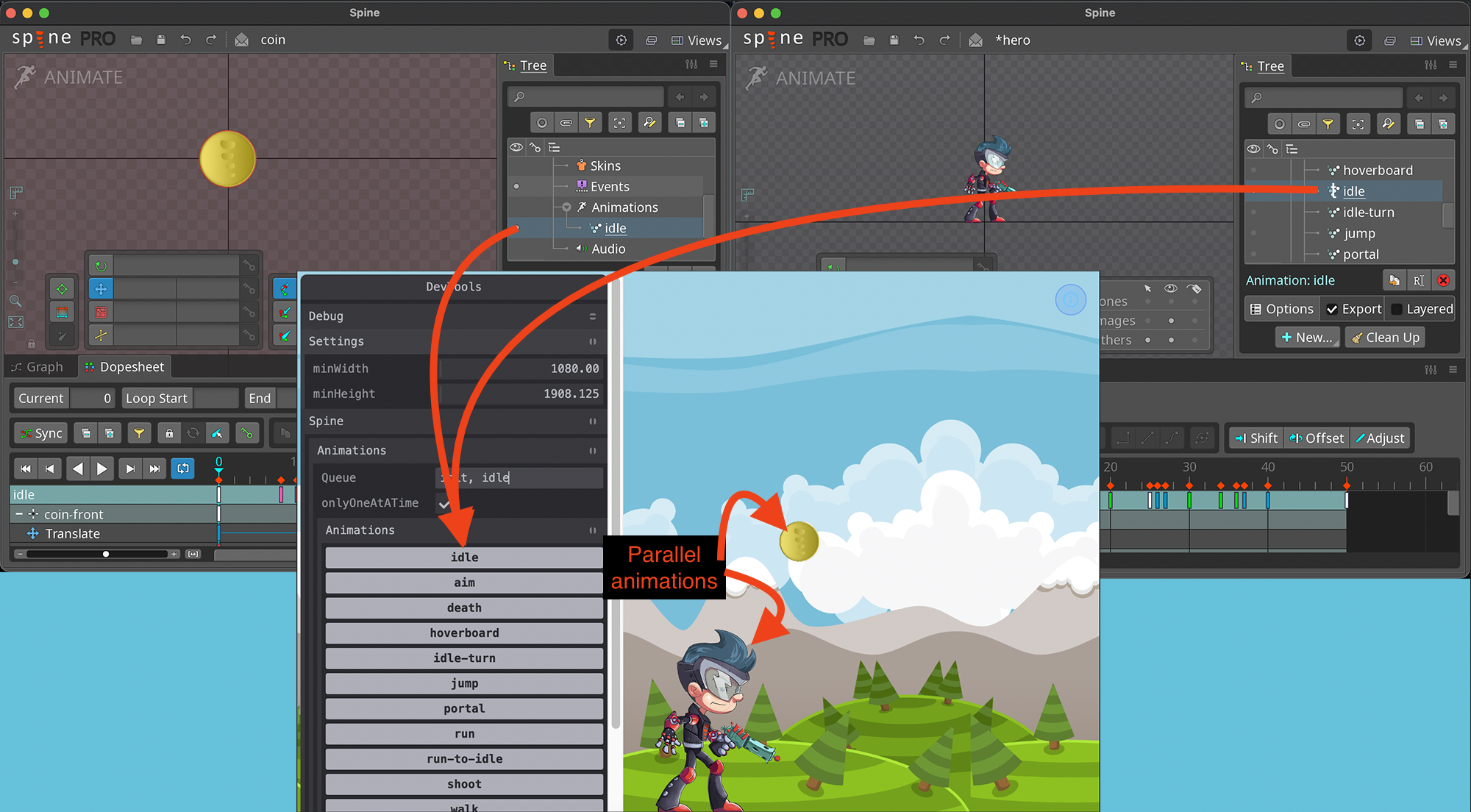
You can trigger the same animation across multiple spines with a single call by giving that animation the same name in multiple files.
Example
You have two spines — coin and hero — both with an animation named idle. Calling play with idle triggers all matching animations in parallel.
3. State / Event animation control
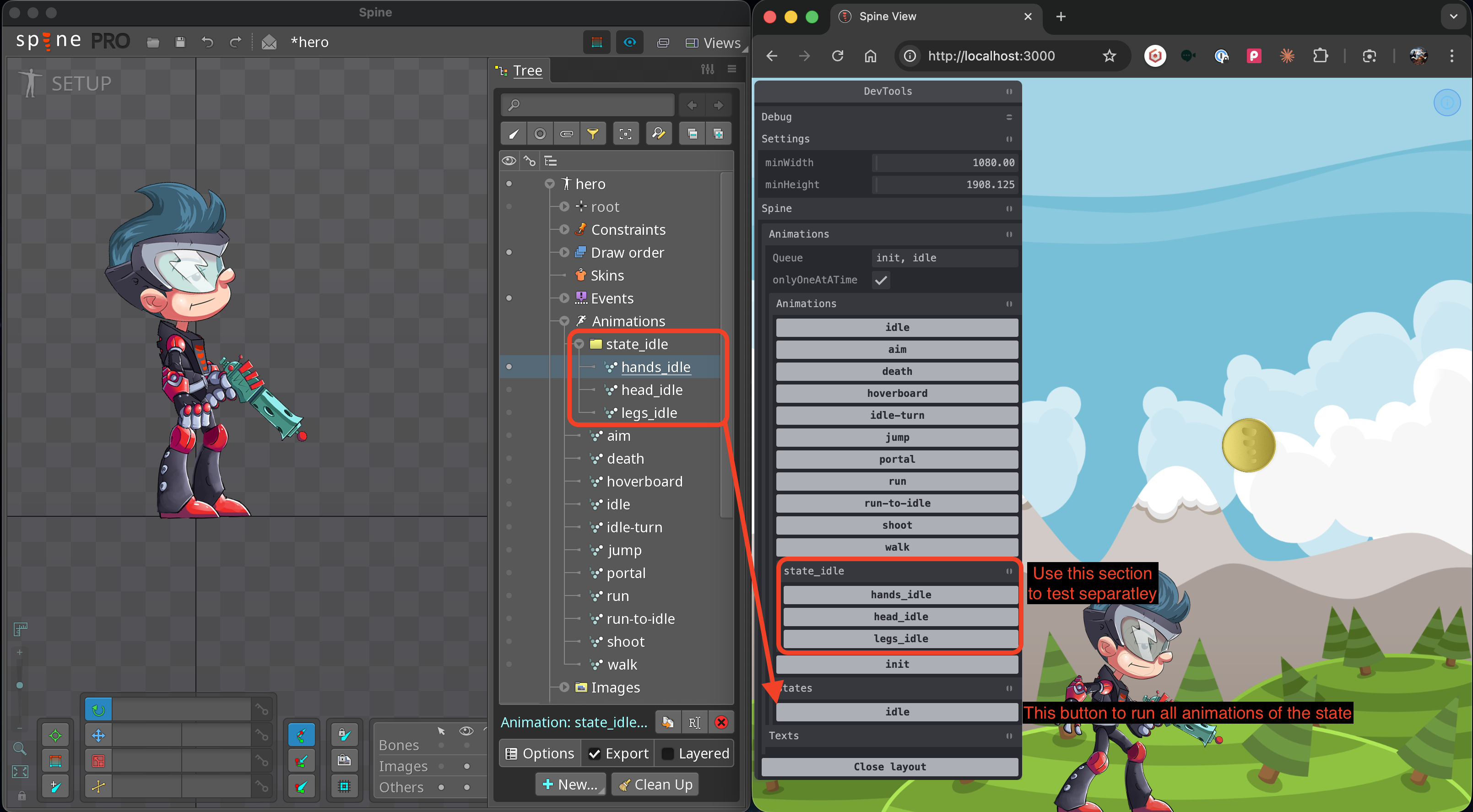
Create a folder inside the animations folder and prefix its name with state_ or event_. All animations inside that folder play together in parallel when the state or event is triggered. The same state/event name across different spines is also triggered in parallel.
Init state
By default the init state plays on all spines when they are loaded. Use it to set up the scene — for example to set initial bone/slot visibility or to fire timeline events.
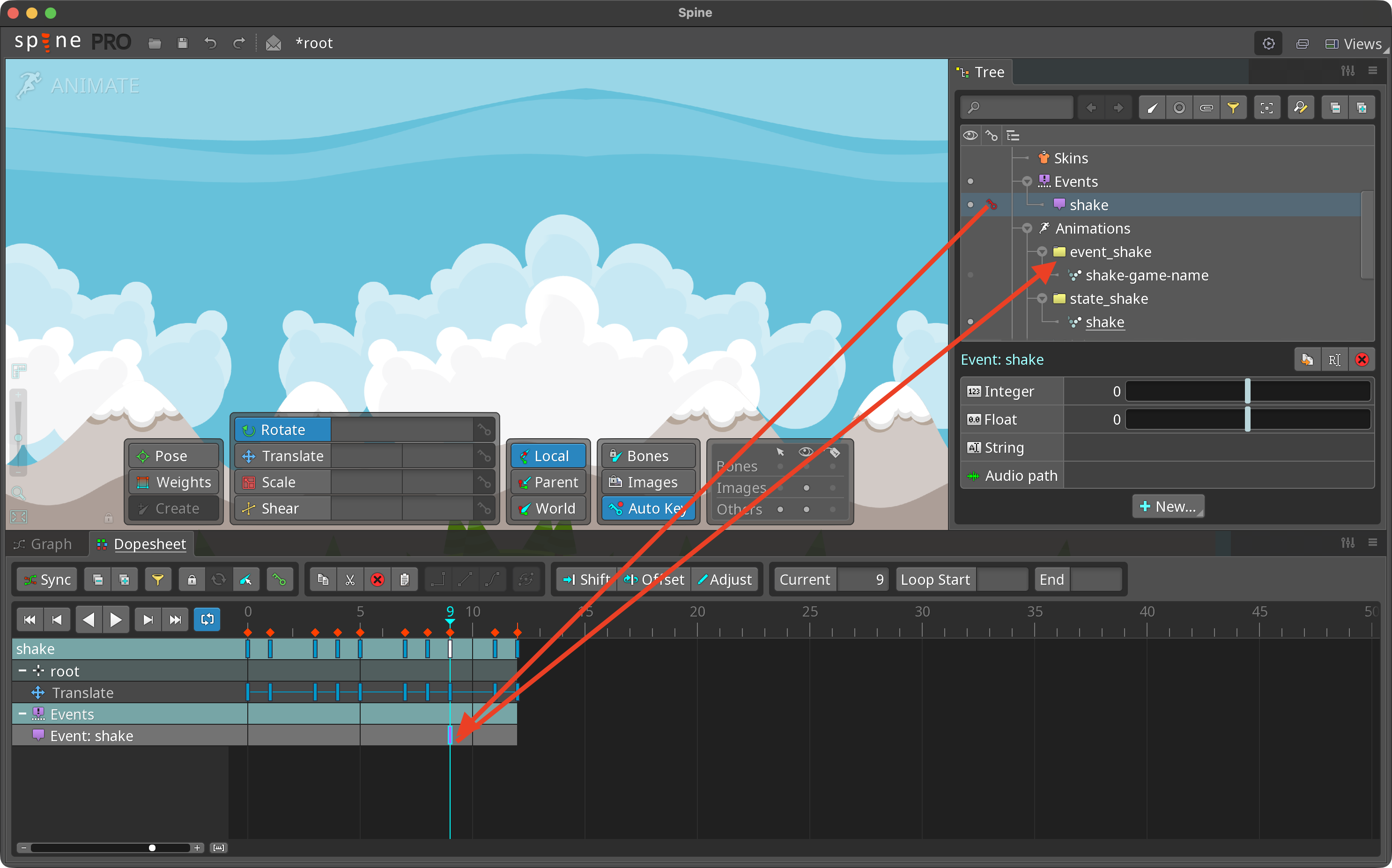
Any event emitted by any spine triggers the matching event_{event_name} group: all animations in all spines inside the event_{event_name} folder play in parallel.
Example 1
You have a hero spine with separate animations for head, legs, and hands (head_idle, legs_idle, hands_idle). Create a folder state_idle and put all three there — they play together. The same pattern works for events: a folder named event_jump fires all its animations when the jump event is triggered from the timeline.
Example 2
You have a spine with a shake event on the timeline and a folder named event_hit. All animations in that folder play when the hit event is emitted.
4. Skins
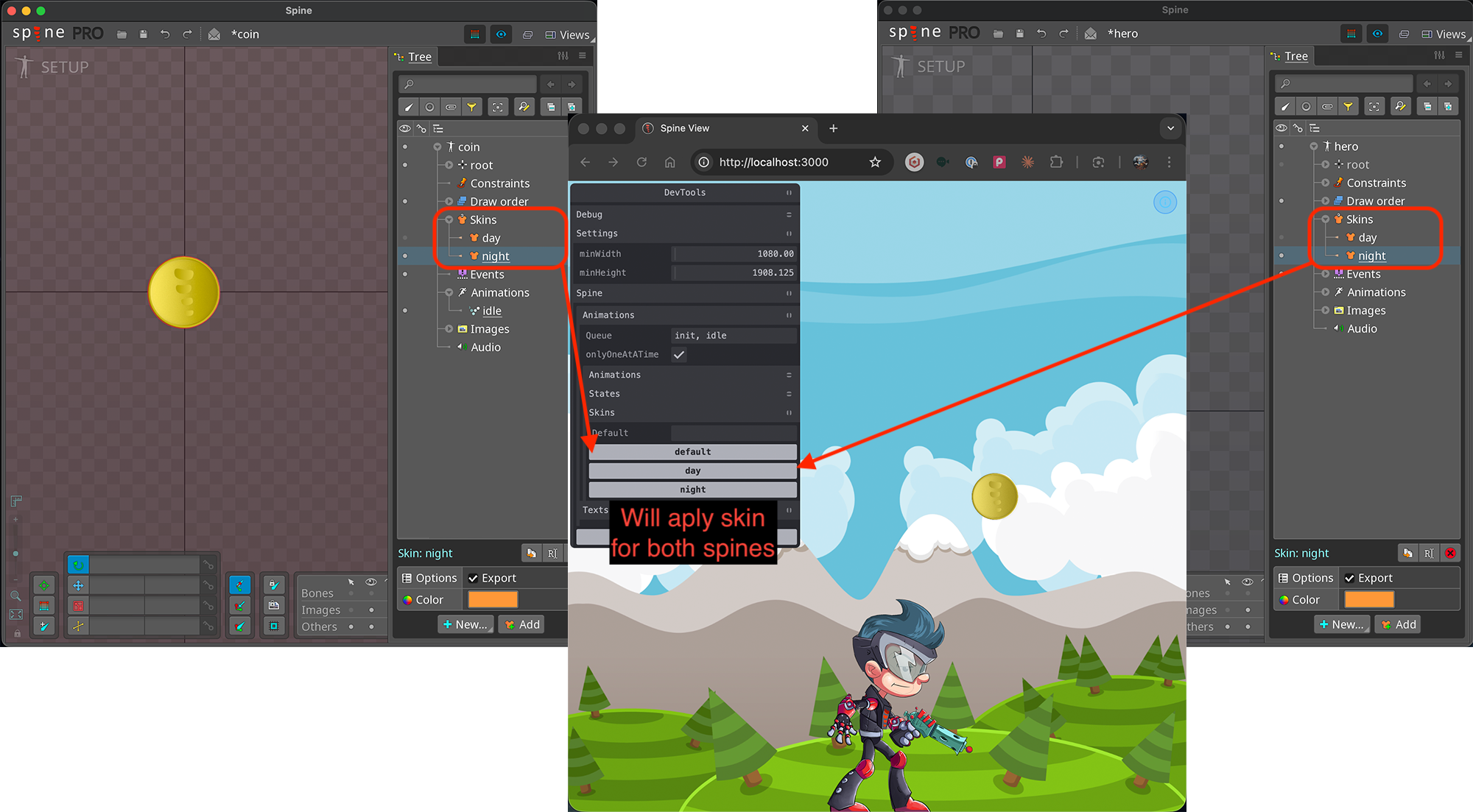
You can apply a skin to multiple spines with one call by giving the same skin name in multiple files.
Example
You have two spines — coin and hero — each with day and night skins. Applying the day skin switches both spines at once.
5. Buttons
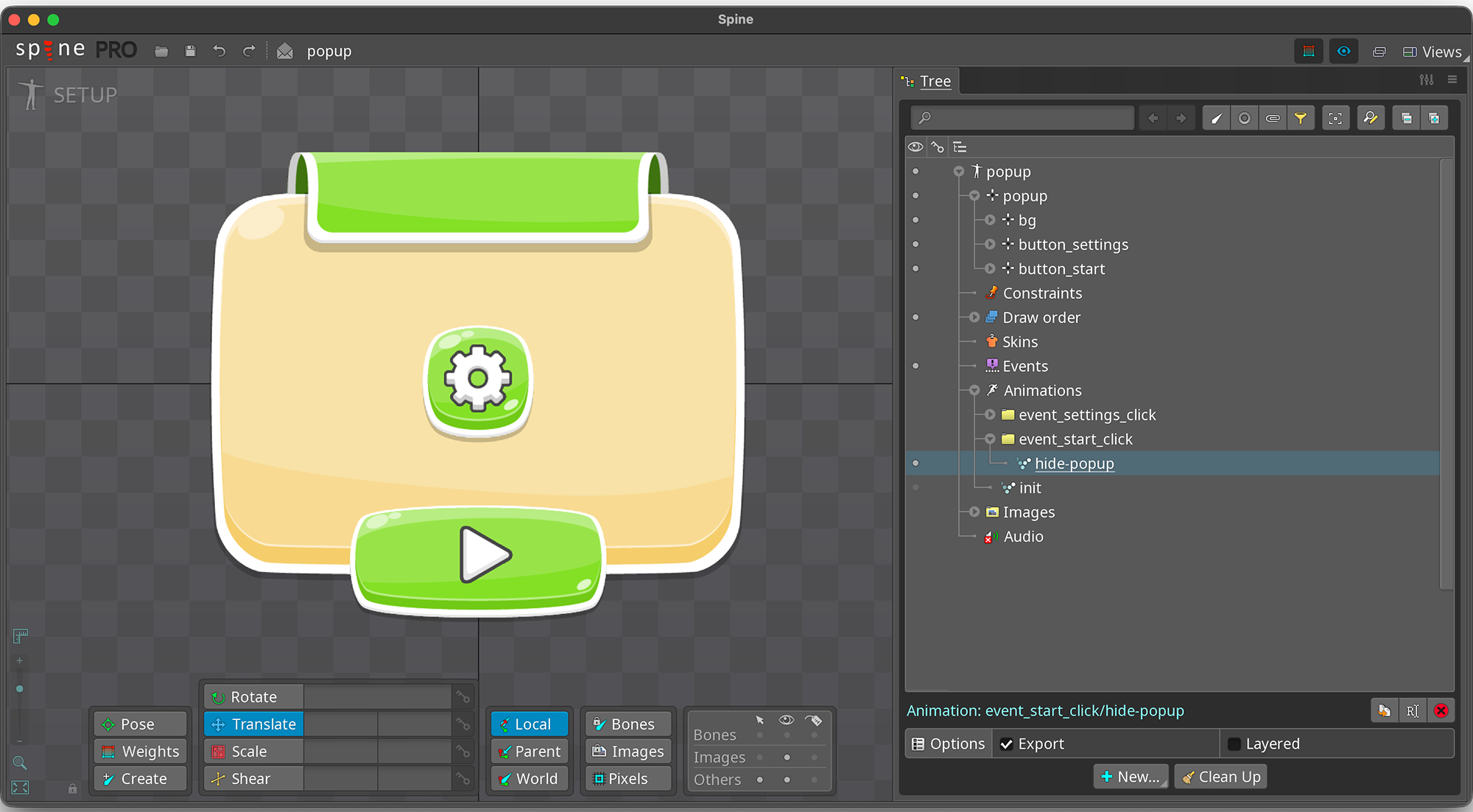
Prefix a slot name with button_ to turn it into a clickable button. Clicking it fires event_{button_name}_click, which can be consumed in the application. If an animation folder named event_{button_name}_click exists, all its animations play in parallel on click.
Additional events fired automatically: event_{button_name}_down, event_{button_name}_up, event_{button_name}_hover, event_{button_name}_unhover.
Example
A slot named button_start and a folder event_start_click — all animations in that folder play when the button is clicked.
6. Animation looping
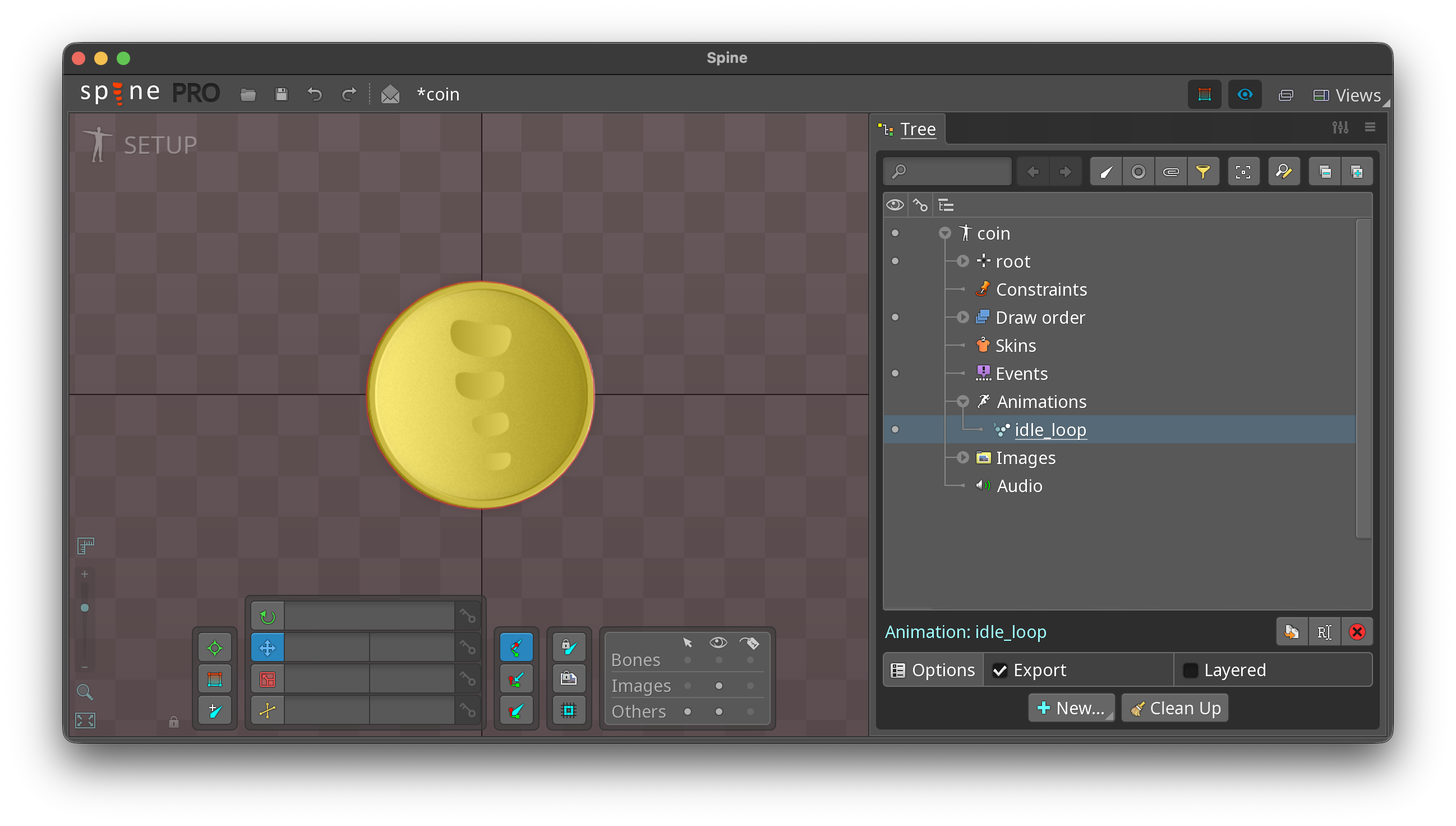
Append _loop to an animation name to make it loop automatically.
Example
An animation named idle_loop loops indefinitely when triggered as idle.
7. Texts
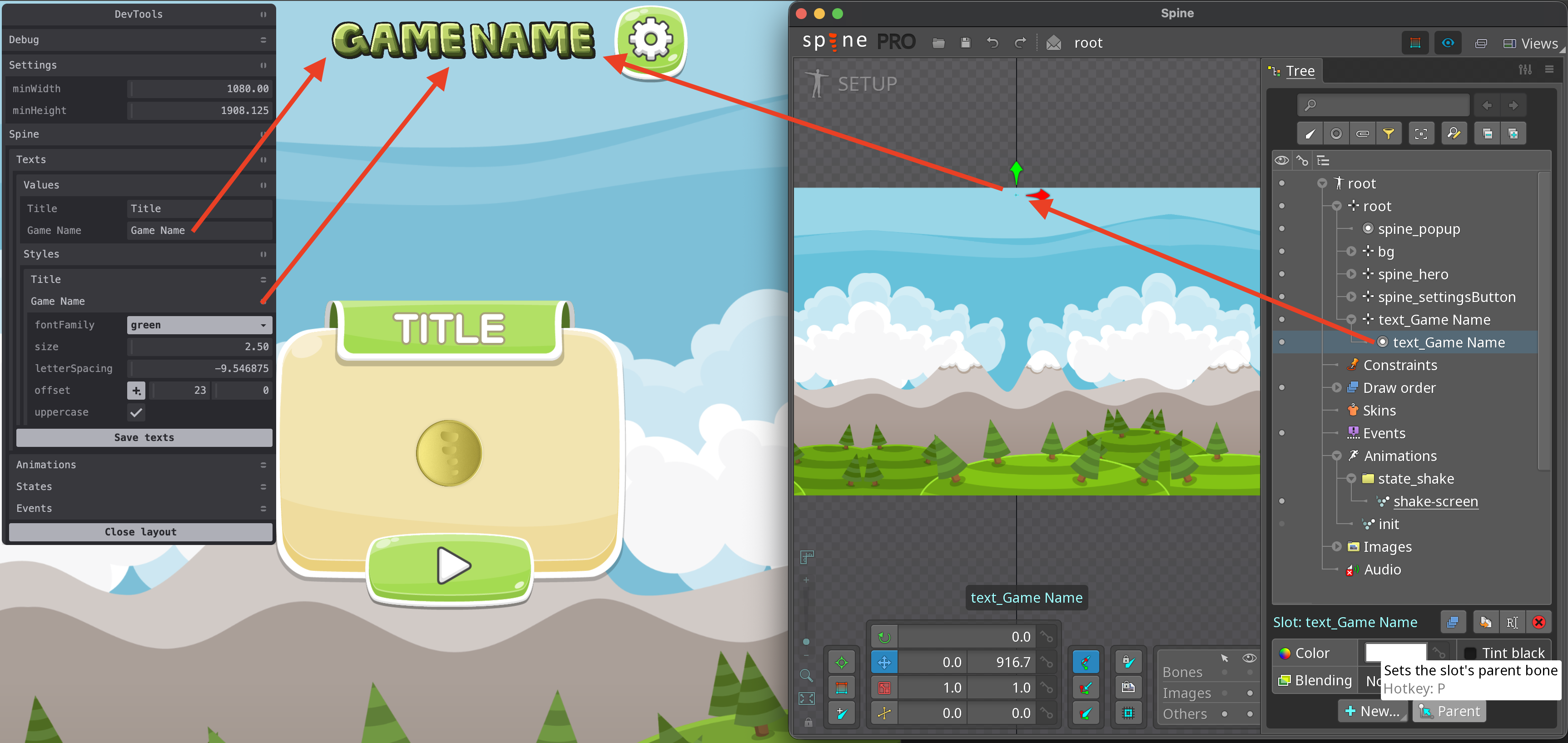
Prefix a slot name with text_ to create a managed text node in that slot. Text values and styles can be set via TextsController or configured through spineview.dev.
Example
A slot named text_Game Name becomes a text node. You can set its value, font family, and size — and update the value from the application at any time.
8. Animation sequences
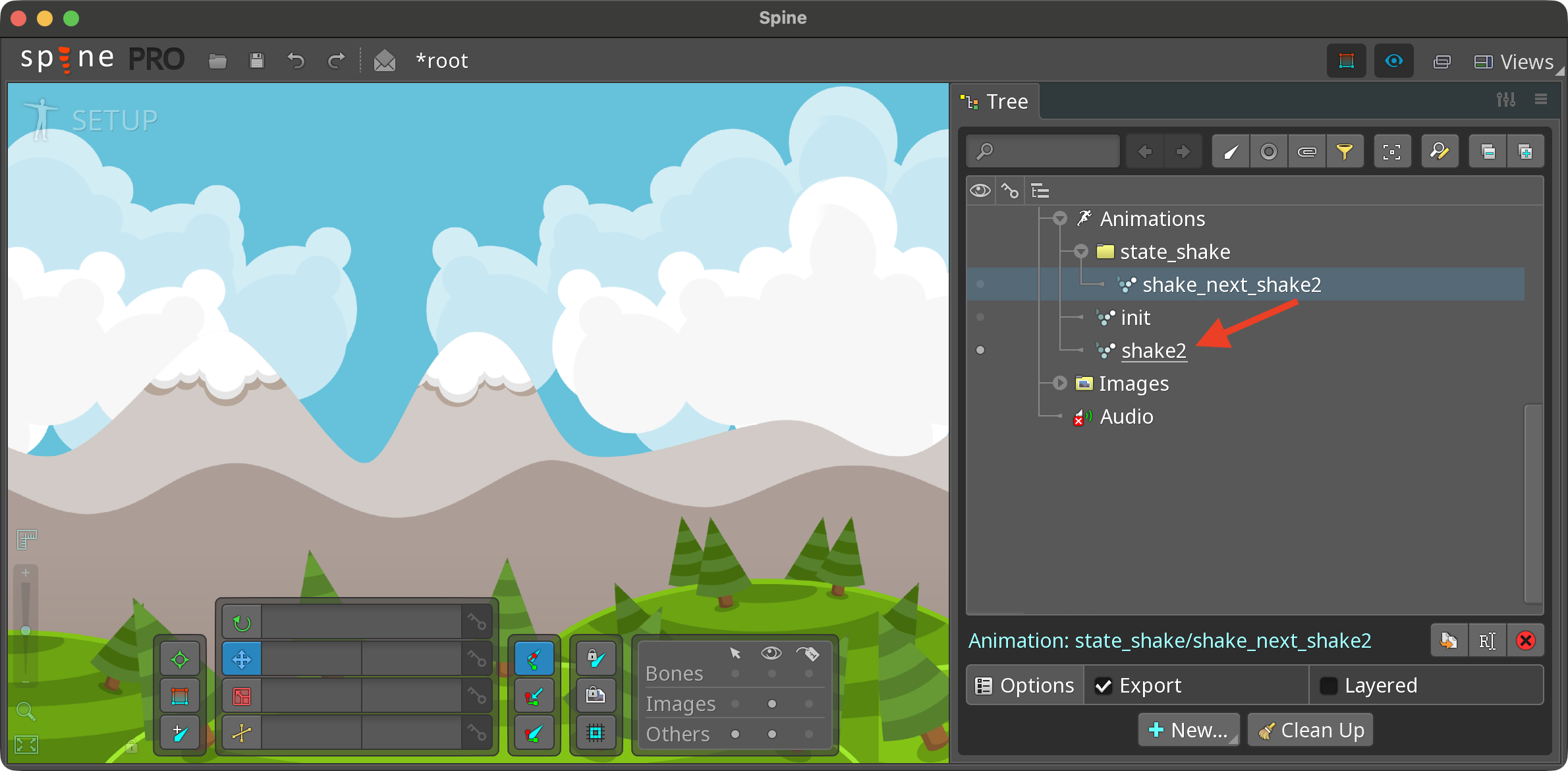
Append _next_{nextAnimationName} to an animation name to chain animations. When the animation finishes the next one starts automatically.
Example
An animation named shake_next_shake2 plays shake, then triggers shake2 automatically when it ends.
9. Sound control
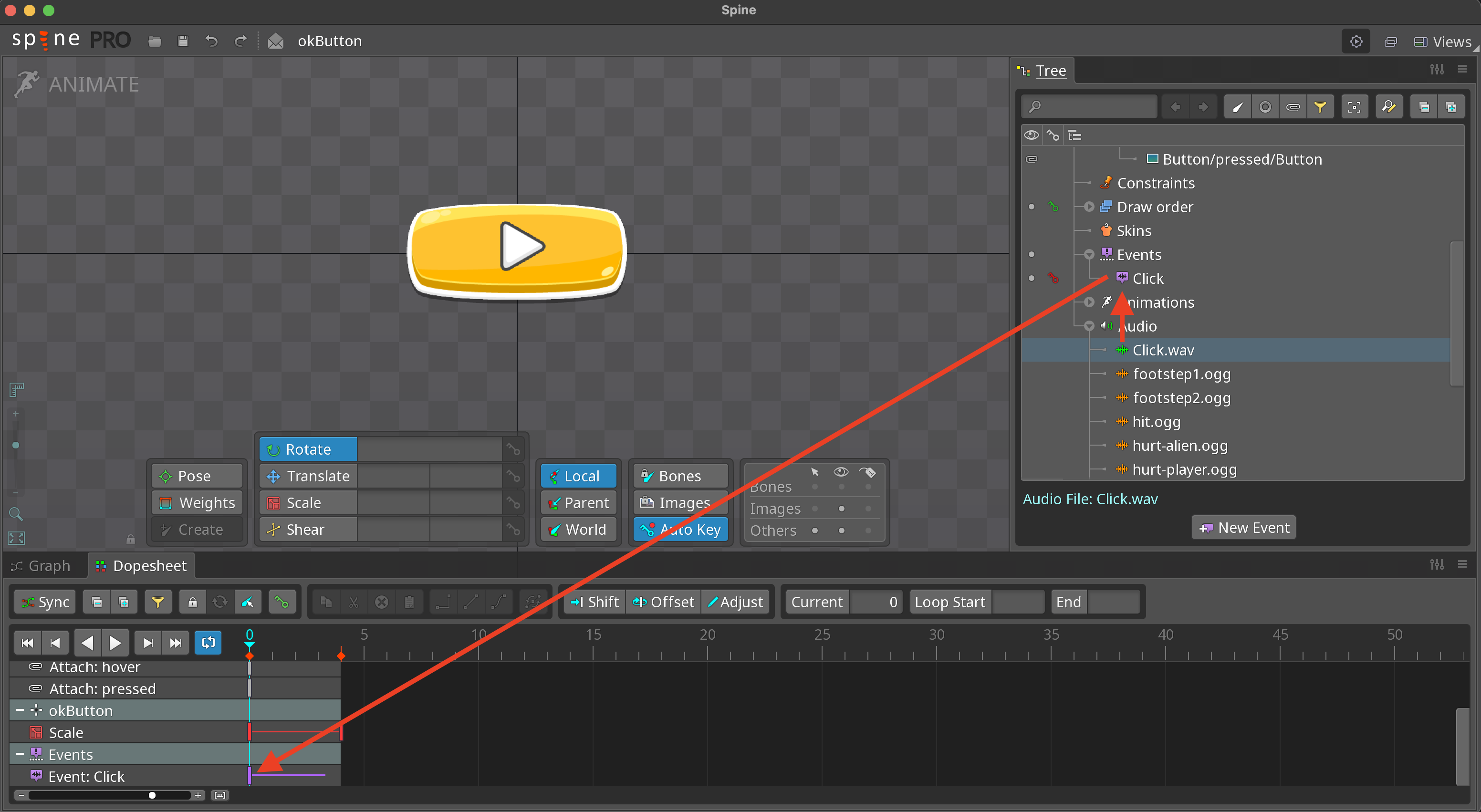
SpineLayout has a built-in sound manager. Bind a sound file to a timeline event and it plays whenever that event fires.
Example
Place a click.mp3 next to the spine export files. Create a timeline event from it in the editor, add that event anywhere on the animation timeline (e.g. on the button-down frame), and the sound plays each time the event is emitted.